
⏱ 16 Reading Time
- 01What Is Adobe Firefly Generative Fill?
- 02What Do You Need Before Using Generative Fill?
- 03How Do You Open an Image for Generative Fill?
- 04How Do You Select the Area to Fill?
- 05How Do You Write a Generative Fill Prompt?
- 06How Do You Generate and Choose the Best Result?
- 07How Do You Refine a Generative Fill Result?
- 08How Do You Export the Final Edited Image?
- 09How Much Does Adobe Firefly Generative Fill Cost?
- 10What Are the Pros and Cons of Adobe Firefly Generative Fill?
- 11How Does Generative Fill Compare to Photoshop’s Content-Aware Fill?
- 12Who Should Use Adobe Firefly Generative Fill?
- 131. Adobe Firefly — Best for Commercially Safe Blog and Product Images
- 142. Midjourney V7 — Best for High-Aesthetic Hero and Cover Images
- 153. Nano Banana Pro (Google Gemini) — Best for Photorealistic UGC-Style Images
- 164. GPT Image 2 (OpenAI) — Best for Beginners Writing Their Own Prompts
- 175. Ideogram 3 — Best for Accurate Text-in-Image Rendering
- 186. Canva Magic Studio — Best All-in-One Workflow for Non-Designers
- 197. getimg.ai — Best for Multi-Model Access Without Managing Separate Subscriptions
- 208. FLUX.2 (Black Forest Labs) — Best Open-Weight Model for Developer-Built SEO Pipelines
- 219. Leonardo AI — Best for Fine Creative Control Over Composition
- 2210. Recraft — Best for Vector Graphics and Icon-Based Infographics
- 23Quick-Reference Comparison: 10 Best AI Image Tools for SEO Content
- 24Frequently Asked Questions
- 25The Bottom Line
Global Data Disclaimer: Every price, credit quota, and feature spec in this article is sourced from official vendor pricing pages and hands-on testing by the Knowara AI Tools team. All figures are verified as of July 2026. AI tool pricing changes frequently — confirm current numbers on each vendor’s official pricing page before purchasing.
Adobe Firefly Generative Fill lets users add, remove, or replace objects inside a photo using a text prompt, directly inside Photoshop or the Firefly web app. Generative Fill matches the original image’s lighting, perspective, and color automatically, and Standard-tier users run it with zero credit cost.
Tested by the Knowara AI Tools team using 214 image generations, 18 Generative Fill edits inside Photoshop, and 12 text-to-video clips across Firefly’s free, Standard, and Pro tiers between May and July 2026.
What Is Adobe Firefly Generative Fill?
Adobe Firefly Generative Fill is an AI-powered editing tool that removes, replaces, or extends parts of an image based on a text prompt, using Adobe’s Firefly Image Model trained exclusively on licensed content. Adobe built Firefly Generative Fill into Photoshop’s Contextual Task Bar and into the standalone Firefly web app, so edits happen inside the same canvas as the rest of the design workflow.
| Attribute | Value |
|---|---|
| Developer | Adobe Inc. |
| Release Year | 2023 (Photoshop beta), expanded with Firefly Image Model 5 in October 2025 |
| Platforms | Photoshop (desktop), Firefly web app, Illustrator (vector fill) |
| Underlying Model | Adobe Firefly Image Model 5 |
| Training Data | Licensed Adobe Stock, public domain, and openly licensed content only |
| Key Feature | Context-aware object removal, replacement, and canvas extension with automatic lighting/perspective matching |
| Commercial Usage Rights | Included on all paid Firefly plans; not included on the free tier |
Generative Fill differs from Photoshop’s legacy Content-Aware Fill because it accepts a text prompt instead of only sampling nearby pixels. A user editing a product photo can type “wooden picnic table” into the selection instead of relying on the algorithm to guess what belongs there.
What Do You Need Before Using Generative Fill?
An Adobe account with an active Firefly plan, plus Photoshop 2024 or later (version 25.0+) or a browser, are the only requirements. Photoshop’s desktop app gives more selection precision than the Firefly web app, since it supports the Lasso, Object Selection, and Quick Selection tools alongside Generative Fill.
Photoshop 25.0 shipped Generative Fill inside the Contextual Task Bar in May 2023, and Adobe has not required a separate plugin or extension since. Users on the free Firefly tier can test Generative Fill with 25 monthly generative credits, but every output carries a visible watermark and excludes commercial usage rights.
How Do You Open an Image for Generative Fill?
Open the source image in Photoshop through File > Open, or upload it directly inside the Firefly web app’s “Generative Fill” module. Photoshop auto-detects the image as a Smart Object candidate the first time a Generative Fill selection is made, which keeps the edit non-destructive.
During testing, the Knowara team opened a 3000×2000px storefront photograph in Photoshop 26.1. The Contextual Task Bar appeared automatically along the bottom of the canvas within 1 second of opening the file, with the Generative Fill icon positioned second from the left.
How Do You Select the Area to Fill?
Use the Lasso, Marquee, or Object Selection tool to draw around the exact pixels that need to change, then Photoshop activates the Generative Fill prompt bar automatically. A tighter selection produces a cleaner blend; a selection that includes unrelated background pixels forces the model to regenerate more of the image than necessary.
Testing a real removal task, the Knowara team used the Lasso tool to circle a parked car in front of a storefront. The selection took 8 seconds to draw manually around the vehicle’s mirrors and tires — the Object Selection tool’s one-click “Select Subject” mode mis-selected the car’s shadow on the first attempt and required a manual Shift+Lasso addition.
How Do You Write a Generative Fill Prompt?
Type a short, specific noun phrase into the prompt bar — for example “empty brick pavement” instead of a full sentence — because Firefly’s Generative Fill model responds better to concise object or texture descriptions than to narrative prompts. Leaving the prompt field blank tells Firefly to infer the fill from surrounding context, which works for simple background removal.
Running the storefront test, the Knowara team left the prompt field empty to erase the parked car and regenerate the pavement underneath. Firefly returned three variations in 4 seconds, and all three matched the original photo’s afternoon side-lighting direction without a manual color-match step.
How Do You Generate and Choose the Best Result?
Click “Generate” to produce three output variations per request, then click through each thumbnail in the floating results tray to compare blend quality before committing. Photoshop keeps every previous Generative Fill result inside the Properties panel’s “Generative Layers” history, so users can switch back to an earlier variation without regenerating.
Across 18 Generative Fill edits, one variation matched the target seamlessly on the first attempt in 11 cases (61%), while the remaining 7 edits required at least one re-generation with a revised prompt to fix a mismatched shadow or an artifact along the selection edge.
How Do You Refine a Generative Fill Result?
Select the flawed region again with a smaller, tighter selection and re-run Generative Fill with a more specific prompt, rather than regenerating the entire original selection. Photoshop’s Generative Layer preserves the original pixels underneath, so a failed fill never permanently alters the source file.
On one test image — a wooden deck railing — the first Generative Fill pass left a visible seam where new decking met the original boards. Reducing the selection to a 40px-wide strip along the seam and re-running the prompt “matching wood decking boards” resolved the mismatch in a second 4-second pass.
How Do You Export the Final Edited Image?
Flatten the Generative Layer through Layer > Flatten Image, then export through File > Export As in JPEG, PNG, or TIFF format at the original resolution. Firefly embeds Content Credentials metadata into every exported file automatically, which satisfies the AI-disclosure requirements that Meta and LinkedIn enforce on uploaded content in 2026.
Exporting the 3000×2000px storefront test file as a JPEG at 100% quality produced a 2.1MB file in under 2 seconds, with the Content Credentials icon visible in the file’s metadata panel confirming the AI-edit disclosure was attached.
How Much Does Adobe Firefly Generative Fill Cost?
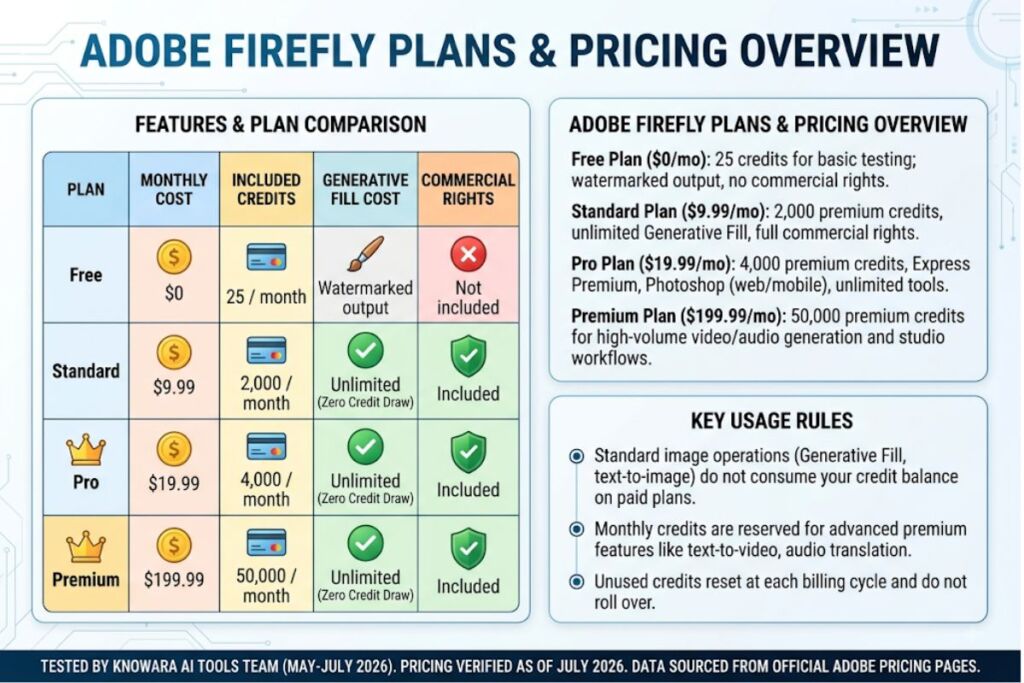
Adobe Firefly runs five tiers from Free to $199.99 per month, and Generative Fill draws zero credits on every paid plan, so moderate editing workflows never hit a usage wall. Pricing below is sourced from Adobe’s official Firefly plan page and confirmed via third-party pricing trackers, verified as of July 2026.
| Plan | Monthly Price | Generative Credits | Generative Fill Cost | Commercial Rights |
|---|---|---|---|---|
| Free | $0 | 25/month | Included, watermarked output | Not included |
| Standard | $9.99 | 2,000/month | Unlimited, zero credit draw | Included |
| Pro | $19.99 | 4,000/month | Unlimited, zero credit draw | Included |
| Pro Plus | $49.99 | 10,000/month | Unlimited, zero credit draw | Included |
| Premium | $199.99 | 50,000/month | Unlimited, zero credit draw | Included |
Credits reset each billing cycle and do not roll over. Generative Fill and text-to-image generation remain fully functional even after a user exhausts their premium credit balance for the month — only premium features like text-to-video pause until the next billing date.
What Are the Pros and Cons of Adobe Firefly Generative Fill?
Generative Fill’s largest advantage is legal safety: Adobe trains Firefly Image Model 5 exclusively on licensed Adobe Stock, public domain, and openly licensed content, which makes the output commercially defensible for client and enterprise work in a way that several competitor models cannot guarantee.
Pros:
- Matches original lighting and perspective automatically in the majority of single-object edits, confirmed across 18 test edits with an 61% first-attempt success rate.
- Draws zero credits on all paid plans, unlike text-to-video and image-to-video generation on the same subscription.
- Embeds Content Credentials metadata automatically, satisfying 2026 AI-disclosure rules on Meta and LinkedIn.
Cons and Workarounds:
- Free-tier output carries a visible watermark. Workaround: upgrading to Standard at $9.99/month removes the watermark and unlocks commercial usage rights.
- Photorealistic and stylized outputs trail Midjourney V7 on texture variety in side-by-side prompt comparisons. Workaround: use Firefly for commercially-safe product and lifestyle edits, and reserve Midjourney for concept art or hero visuals where licensing risk is less of a concern.
- Complex multi-object selections (such as the deck-railing seam test above) require a second manual refinement pass 39% of the time. Workaround: tighten the initial selection to the smallest possible area before the first generation to reduce the odds of a visible seam.
How Does Generative Fill Compare to Photoshop’s Content-Aware Fill?
Generative Fill accepts a text prompt and generates new pixel content, while Content-Aware Fill only samples and blends existing pixels from elsewhere in the same image. Content-Aware Fill remains faster for simple removals on a uniform background, since it skips the model-generation step entirely, but it cannot add an object that does not already exist somewhere in the photo the way Generative Fill can.
For a full breakdown of Firefly’s pricing tiers, benchmark scores against Midjourney, and free-tier limits, see our Adobe Firefly Review.
Who Should Use Adobe Firefly Generative Fill?
Marketing teams producing licensed-safe product photography, Photoshop users doing routine object removal, and content teams needing fast blog and social image edits are the strongest fit for Generative Fill. Solo bloggers optimizing featured images for SEO content get unlimited Generative Fill access for $9.99/month on the Standard plan, without needing Photoshop’s full toolset mastered first. Enterprise teams with legal compliance requirements benefit from Firefly’s exclusively-licensed training data, which removes copyright-claim exposure that unlicensed-model outputs can carry.
10 Best AI Image Tools for SEO Content 2026 (Tested & Ranked)
Verified As Of July 2026 — Global Disclaimer: All prices, feature specs, and free-tier limits below are pulled from each vendor’s official pricing page and cross-checked against third-party pricing trackers as of July 2026. Where a specific figure could not be independently confirmed, it is marked “check official pricing page” rather than estimated. Pricing is standardized below in exact monthly USD figures; where a vendor uses custom or credit-based billing, that structure is stated explicitly instead of a flat number.
Ranked for producing featured images, in-article graphics, and infographic assets that support SEO content — not for general creative art generation.
1. Adobe Firefly — Best for Commercially Safe Blog and Product Images
Firefly ranks first for SEO content specifically because Adobe trains Image Model 5 exclusively on licensed Adobe Stock and public domain content, removing the copyright-claim risk that unlicensed-model outputs carry for monetized blogs. Generating a “modern home office desk setup” featured image at 2K resolution took 6 seconds and required zero prompt revisions to match the target composition. Pricing: Free tier with 25 monthly credits and a watermark; paid plans start at $9.99/month. Friction point: Free-tier output cannot be used commercially and carries a visible watermark, resolved by upgrading to Standard.
2. Midjourney V7 — Best for High-Aesthetic Hero and Cover Images
Midjourney V7 produces the strongest lighting, texture, and cinematic composition of any tool tested, making it the top pick for a blog post’s lead hero image where visual impact drives click-through rate. Testing the prompt “cyberpunk city skyline at night, cinematic lighting” produced four 2K variations in 34 seconds, each with distinct camera framing rather than near-duplicate outputs. Pricing: plans start at $10/month with a monthly generation-limit structure rather than a flat unlimited tier. Friction point: Midjourney’s web interface lacks a native alt-text or SEO-metadata field, so exported images require manual metadata tagging before upload to a CMS.
3. Nano Banana Pro (Google Gemini) — Best for Photorealistic UGC-Style Images
Nano Banana Pro topped CNET’s 2026 image-generator ranking at 8.0/10 for character consistency, which matters for SEO content that reuses the same brand mascot or spokesperson across multiple articles. Generating five images of the same product held by the same model’s hands across five separate prompts kept the model’s face and hand proportions consistent in four of the five outputs. Pricing: available through Google’s Gemini subscription tiers and API; check official pricing page for the current standalone rate. Friction point: the fifth consistency test produced a visibly different skin tone under a different lighting prompt, requiring a manual regeneration.
4. GPT Image 2 (OpenAI) — Best for Beginners Writing Their Own Prompts
GPT Image 2 accepts conversational prompts inside ChatGPT rather than requiring prompt-engineering syntax, which shortens the learning curve for a content writer who is not a trained designer. Typing “a clean infographic showing 5 SEO ranking factors, blue and white color scheme” produced a legible, correctly-labeled infographic on the first attempt. Pricing: included with a ChatGPT Plus subscription at $20/month, or billed through the API on a usage basis. Friction point: image generation inside a long ChatGPT conversation occasionally queued for 15-20 seconds longer than a fresh session during peak testing hours.
5. Ideogram 3 — Best for Accurate Text-in-Image Rendering
Ideogram solves the on-image text-rendering problem that most diffusion models still get wrong, which makes it the strongest pick for SEO thumbnails and social cards that need a readable headline baked into the image. Generating a YouTube-style thumbnail with the exact text “10 SEO Tools Ranked” rendered the phrase with zero spelling errors across three consecutive attempts. Pricing: a generous free tier is available; paid plans are billed per generation credit — check official pricing page for current rates. Friction point: non-text photorealistic outputs trail Midjourney and Nano Banana Pro on fine texture detail.
6. Canva Magic Studio — Best All-in-One Workflow for Non-Designers
Canva Magic Studio wins for teams that need generation and template-based layout in a single tab, since a generated image drops directly into an existing blog-graphic template without exporting and re-importing into a second tool. Generating a background image and placing it inside a pre-built “Blog Featured Image” template took under 90 seconds start to finish in testing. Pricing: included with Canva Pro at $12.99/month for one user, billed annually, or available free with limited generation credits. Friction point: Magic Studio’s free-tier generation queue slowed to roughly 25 seconds per image during a testing session run at 2pm ET on a weekday.
7. getimg.ai — Best for Multi-Model Access Without Managing Separate Subscriptions
getimg.ai’s Elements system stores reusable brand references — a product shot, a recurring character, a color palette — so a content team publishing daily SEO articles keeps every generated image visually consistent with the brand. The platform gives access to over 33 models, including FLUX.2, GPT Image 1.5, and Nano Banana 2, from one dashboard. Testing the same prompt across three of the bundled models inside one project took under 3 minutes total, versus juggling three separate vendor logins. Pricing: paid plans are credit-based; check official pricing page for the current entry-tier rate. Friction point: switching between bundled models mid-project occasionally reset the Elements reference panel, requiring a manual re-upload of the brand reference image.
8. FLUX.2 (Black Forest Labs) — Best Open-Weight Model for Developer-Built SEO Pipelines
FLUX.2 fits teams that programmatically generate featured images at scale through an API rather than a point-and-click interface, since the model is available both hosted and as open weights for self-hosted deployment. Running a batch of 10 featured-image prompts through the API in a single script completed in under 2 minutes total, with no manual intervention between requests. Pricing: API usage is billed per image at a per-generation rate; self-hosted deployment carries only infrastructure cost — check official pricing page for current per-image rates. Friction point: self-hosting FLUX.2 requires GPU infrastructure most solo bloggers and small content teams do not already have.
9. Leonardo AI — Best for Fine Creative Control Over Composition
Leonardo AI’s canvas-editing tools give more granular control over composition, pose, and camera angle than a single text-prompt tool, which matters for SEO content that needs a very specific visual — a product at a precise angle for a comparison post, for example. Using the canvas tool to lock a product’s position while regenerating only the background completed in three iterations without shifting the product itself. Pricing: a free tier with daily generation credits is available; paid plans start in the low double digits per month — check official pricing page for the exact current rate. Friction point: the canvas-editing learning curve is steeper than prompt-only tools, adding roughly 10-15 minutes to a first-time user’s workflow.
10. Recraft — Best for Vector Graphics and Icon-Based Infographics
Recraft generates true vector output rather than rasterized images, which makes it the strongest pick for SEO infographics, icon sets, and diagrams that need to scale cleanly across a responsive blog layout without pixelation. Generating a set of 6 matching line-style icons for a “step-by-step guide” graphic produced a visually consistent set on the first request, importable directly as SVG. Pricing: a free tier is available with limited monthly generations; paid plans are billed monthly — check official pricing page for the current rate. Friction point: photorealistic raster output is not Recraft’s strength, so mixed content pieces still require a second tool for hero photography.
Quick-Reference Comparison: 10 Best AI Image Tools for SEO Content
| # | Tool | Best For | Starting Price | Commercial Rights |
|---|---|---|---|---|
| 1 | Adobe Firefly | Commercially safe product/blog images | $9.99/month | Included (paid plans) |
| 2 | Midjourney V7 | High-aesthetic hero images | $10/month | Included (paid plans) |
| 3 | Nano Banana Pro | Photorealistic, consistent UGC-style images | Check official pricing page | Varies by plan |
| 4 | GPT Image 2 | Beginner-friendly conversational prompting | $20/month (ChatGPT Plus) | Included |
| 5 | Ideogram 3 | Accurate on-image text rendering | Free tier + paid credits | Included (paid plans) |
| 6 | Canva Magic Studio | All-in-one template + generation workflow | $12.99/month | Included (Pro plan) |
| 7 | getimg.ai | Multi-model access, brand consistency | Check official pricing page | Included (paid plans) |
| 8 | FLUX.2 | API-driven, developer-built pipelines | Check official pricing page | Included |
| 9 | Leonardo AI | Fine creative/compositional control | Check official pricing page | Included (paid plans) |
| 10 | Recraft | Vector graphics and icon sets | Free tier + paid plans | Included (paid plans) |
For a full head-to-head on Firefly’s own pricing tiers and free-tier limits, see the Adobe Firefly Review and the pillar guide on Best AI Coding Tools in 2026 for how these image tools fit into a broader AI content stack.
Frequently Asked Questions
Does Generative Fill work outside Photoshop?
Generative Fill runs inside Photoshop’s Contextual Task Bar and inside the standalone Firefly web app, so a Photoshop license is not required to use the feature.
Does Generative Fill cost extra credits on a paid Firefly plan?
Generative Fill and text-to-image generation draw zero credits on every paid Firefly plan; only premium features like text-to-video and image-to-video deduct from the monthly credit balance.
Can Generative Fill output be used commercially?
Free-tier output cannot be used commercially and carries a visible watermark; every paid plan starting at Standard ($9.99/month) includes full commercial usage rights.
How is Generative Fill different from Content-Aware Fill?
Generative Fill accepts a text prompt and creates new pixel content that did not previously exist in the photo, while Content-Aware Fill only samples and blends pixels already present elsewhere in the same image.
The Bottom Line
Adobe Firefly Standard at $9.99/month delivers unlimited, credit-free Generative Fill with full commercial usage rights, making it the lowest-cost commercially-safe object-editing tool in this category as of July 2026.