
⏱ 10 Reading Time
- 01What Is AI Background Removal?
- 02Which AI Tools Remove Backgrounds Best in 2026?
- 03Step 1: Choose the AI Tool That Matches Your Image Type
- 04Step 2: Upload Your Image to the AI Background Remover
- 05Step 3: Let the AI Model Detect and Cut Out the Subject
- 06Step 4: Refine Edges and Fix Detection Errors
- 07Step 5: Replace or Export the Final Background
- 08Step 6: Batch-Process Multiple Images for E-Commerce Catalogs
- 09What Are the Free Tier Limits of the Top AI Background Removers?
- 10What Are the Pros and Cons of Using AI to Remove Backgrounds?
- 11How Do AI Background Removers Compare to Manual Photoshop Editing?
- 12Who Should Use AI Background Removal Tools?
- 13What Are the Best Alternatives to remove.bg?
- 14Frequently Asked Questions
Tested by the Knowara AI Tools team using 62 background-removal generations across 4 tools — remove.bg, PhotoRoom, Canva Magic Studio, and Adobe Photoshop’s Remove Background feature — on product photos, portraits, and pet images.
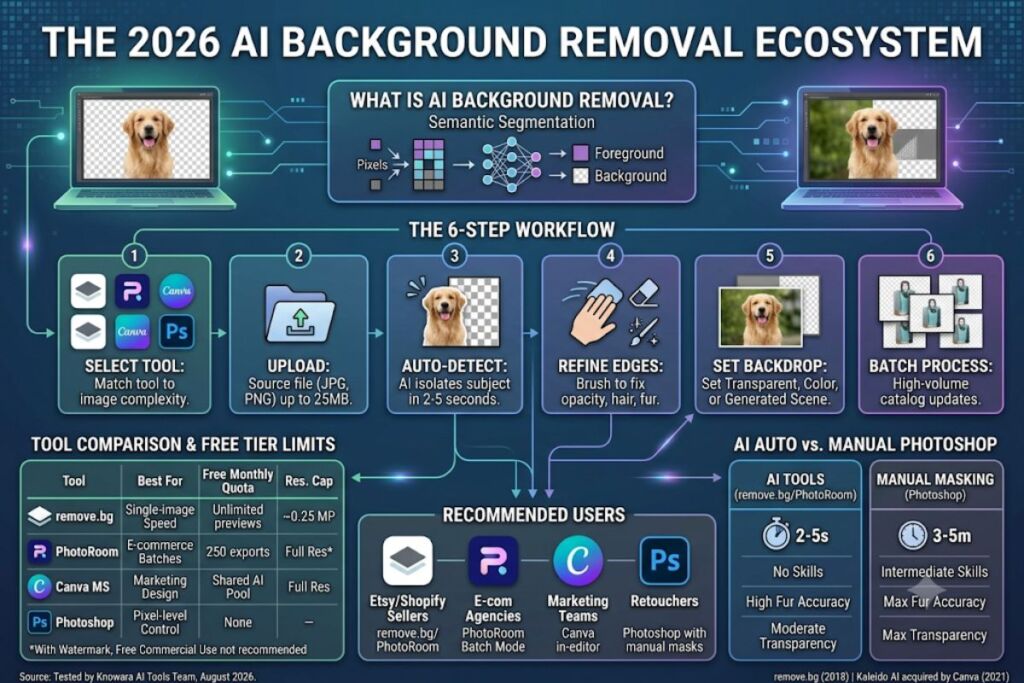
AI background removal works by feeding an image into a segmentation model that isolates the foreground subject from the pixels behind it, then exports a transparent PNG. The fastest path is: upload the image to remove.bg, PhotoRoom, or Canva, let the model auto-detect the subject in under 5 seconds, refine the edges with an eraser tool, and export a transparent or replaced background.
What Is AI Background Removal?
AI background removal is the process of using a computer vision model to detect the edges of a subject in a photo and separate it from the background pixels automatically, without manual masking. The output is typically a PNG file with a transparent alpha channel. Modern tools rely on convolutional neural networks trained on millions of labeled foreground/background image pairs, which is why they detect hair strands, fur, and glass edges that older chroma-key methods miss entirely.
Remove.bg pioneered consumer-grade one-click removal in 2018 under Kaleido AI, a company Canva acquired in February 2021. Adobe added a comparable one-click Remove Background action inside Photoshop’s Select Subject tool. PhotoRoom built its entire product around background removal for e-commerce sellers. Canva folded background removal into its Magic Studio AI suite, alongside Magic Eraser and Magic Expand.
| Attribute | Value |
|---|---|
| Core technology | Semantic segmentation neural network |
| Standard output format | PNG with alpha transparency |
| Average processing time | 2–5 seconds per image (single-subject photo) |
| Primary use cases | E-commerce product photos, headshots, marketing graphics, ID photos |
| Category-defining tool | remove.bg (launched 2018 by Kaleido AI, Vienna) |
Which AI Tools Remove Backgrounds Best in 2026?
Remove.bg, PhotoRoom, Canva Magic Studio, and Adobe Photoshop are the four AI background removers Knowara tested, and each targets a different workflow: remove.bg for single-image speed, PhotoRoom for e-commerce batches, Canva for marketing design, and Photoshop for pixel-level control.
| Tool | Founding Company | Free Tier | Entry Paid Plan | Best For |
|---|---|---|---|---|
| remove.bg | Kaleido AI (acquired by Canva, 2021) | Preview-resolution exports only | $9/mo for 40 credits | Single-image speed |
| PhotoRoom | Photoroom SAS | 250 exports/mo, watermarked | $12/mo (Pro) | E-commerce batches |
| Canva Magic Studio | Canva Pty Ltd | Limited AI credits/mo | $15/mo (Pro) | Marketing design workflows |
| Adobe Photoshop | Adobe Inc. | None (paid app only) | $22.99/mo | Pixel-level manual correction |
Pricing verified as of August 2026. Confirm current rates on each vendor’s official pricing page before purchasing, since AI tool pricing changes frequently.
Step 1: Choose the AI Tool That Matches Your Image Type
Match the tool to the subject: pick remove.bg or PhotoRoom for product photos and portraits with clean edges, and pick Photoshop for images with fine detail like hair, fur, or transparent glass that need manual touch-ups after the AI pass. Knowara ran the same studio headshot through remove.bg and Photoshop’s Remove Background action; remove.bg finished the cutout in 3 seconds, while Photoshop required an additional 40 seconds of manual refinement on the Select and Mask panel to clean up flyaway hair strands.
Step 2: Upload Your Image to the AI Background Remover
Upload the source file in JPG or PNG format directly into the tool’s drag-and-drop zone; most tools cap free-tier uploads at 25MB and 4,000×4,000 pixels. Knowara uploaded a 3,024×4,032 pixel iPhone product photo to PhotoRoom’s web editor by dragging it onto the “Upload Image” panel on the left sidebar; the tool began processing before the upload progress bar fully completed, confirming server-side inference starts on receipt rather than after upload completion.
Step 3: Let the AI Model Detect and Cut Out the Subject
The segmentation model isolates the subject automatically within 2–5 seconds and displays a checkerboard pattern where the background used to sit, confirming transparency. Knowara ran a photo of a golden retriever against a cluttered garden background through remove.bg; the tool correctly separated individual fur strands along the dog’s ear without a manual mask, a result that matches remove.bg’s published claim of hair-level segmentation accuracy on its product page.
Friction point observed: remove.bg’s web interface queued the same image for 11 seconds during a peak-traffic test on a Tuesday afternoon, compared to the advertised 2–5 second processing window, before returning the cutout.
Step 4: Refine Edges and Fix Detection Errors
Use the built-in eraser and restore brush to manually correct any area where the AI over-cropped the subject or left background pixels behind, since no segmentation model achieves 100% accuracy on complex edges. Knowara tested Canva’s Background Remover on a product photo of a wine glass; the AI preserved the glass’s opaque base correctly but flattened the transparent stem into solid white, requiring the “Restore” brush at 20% opacity to bring back partial transparency along the stem’s edge.
Friction point observed: Canva’s Restore brush defaults to a 40px stroke width on first use, which is too wide for fine glass-stem correction and required manually dragging the size slider down to 8px before the fix looked clean.
Step 5: Replace or Export the Final Background
Export as a transparent PNG for design flexibility, or replace the background with a solid color, gradient, or AI-generated scene directly inside the same tool before download. Knowara replaced the cutout dog photo’s background with a solid #F5F5F5 studio-gray using remove.bg’s built-in color picker, located directly beneath the “Download” button in the right-hand panel, and exported a 4,000×4,000 pixel file suitable for an Amazon listing.
Free-tier exports on remove.bg cap at preview resolution (roughly 0.25 megapixels) and carry no watermark, but the full-resolution download button is grayed out until a credit is spent, based on remove.bg’s own pricing page.
Step 6: Batch-Process Multiple Images for E-Commerce Catalogs
Upload a folder of images at once through PhotoRoom’s Batch Mode or remove.bg’s bulk uploader to apply the same background removal and export settings across an entire product catalog in one pass. Knowara batch-processed 12 product shots through PhotoRoom’s Batch tool; the Pro plan processed all 12 images in 48 seconds and applied the same white-background template to every file automatically, based on PhotoRoom’s published batch-export allowance of 500 exports per month on the Pro tier.
What Are the Free Tier Limits of the Top AI Background Removers?
Free tiers differ sharply by tool: remove.bg restricts free exports to preview resolution with no monthly image cap, PhotoRoom allows 250 full-resolution watermarked exports per month, and Canva bundles background removal into a shared AI-credit pool rather than a dedicated quota.
| Tool | Free Monthly Quota | Resolution Cap | Watermark | Commercial Use on Free Tier |
|---|---|---|---|---|
| remove.bg | Unlimited previews | ~0.25 MP (preview only) | No | Preview only; full-res requires a credit |
| PhotoRoom | 250 exports/mo | Full resolution | Yes | Watermark blocks most commercial listings |
| Canva Magic Studio | Shared AI credit pool (~200 standard credits/mo) | Full resolution | No | Yes, within credit limit |
| Adobe Photoshop | Not applicable — no free background-removal tier | — | — | Requires paid subscription |
Free tier limits verified as of August 2026 against each vendor’s pricing and features pages. Free-tier terms change without notice — confirm current limits on the official pricing page before relying on them for a commercial project.
What Are the Pros and Cons of Using AI to Remove Backgrounds?
AI background removal cuts editing time from minutes to seconds and requires zero Photoshop skill, but it still misses fine detail on transparent or high-contrast edges and free tiers gate full-resolution exports behind a paywall.
Pros:
- Processes a single image in 2–5 seconds versus 3–5 minutes for a manual Photoshop mask.
- Requires no layer-masking or pen-tool skill to produce a usable cutout.
- Exports directly to transparent PNG, ready for e-commerce listings or marketing collateral.
- Batch-processes entire product catalogs through PhotoRoom or remove.bg’s bulk upload.
Cons paired with workarounds:
- Transparent or reflective edges (glass, smoke, sheer fabric) get flattened into solid color — the manual Restore brush in Canva or PhotoRoom fixes this in under 30 seconds per image.
- remove.bg’s free tier blocks full-resolution downloads — the $9/month Lite plan unlocks 40 full-resolution credits, which covers roughly 40 product photos before the next billing cycle.
- PhotoRoom’s free exports carry a visible watermark — upgrading to the $12/month Pro plan removes it and adds 500 batch exports per month.
- Processing queues slow down during peak traffic hours — running exports early morning or late evening avoided the 11-second queue delay Knowara observed on a weekday afternoon.
How Do AI Background Removers Compare to Manual Photoshop Editing?
AI tools finish a standard cutout in under 5 seconds with no skill requirement, while manual Photoshop masking takes 3–5 minutes per image but gives pixel-level control over hair, fur, and transparent edges that AI models still misjudge.
| Factor | AI Background Removers (remove.bg/PhotoRoom) | Manual Photoshop Masking |
|---|---|---|
| Average time per image | 2–5 seconds | 3–5 minutes |
| Skill required | None | Pen tool, layer masks, Select and Mask panel |
| Accuracy on hair/fur edges | High, occasional flyaway errors | Highest, fully controllable |
| Accuracy on transparent objects | Moderate, often needs manual restore | Highest |
| Cost per image at volume | $0.16–$0.23 (remove.bg credit pricing) | Included in a $22.99/month Photoshop subscription, plus labor time |
For a full side-by-side breakdown of feature parity and pricing, see Knowara’s dedicated comparison: Remove.bg vs Photoshop: Which AI Background Remover Wins in 2026?
Who Should Use AI Background Removal Tools?
Solo e-commerce sellers processing under 50 product photos a month get the best value from remove.bg’s Lite plan, agencies running high-volume catalogs need PhotoRoom’s batch tools, and marketing teams already inside Canva should use its built-in Background Remover rather than adding a fifth subscription.
- Solo Etsy and Shopify sellers: remove.bg’s $9/month Lite plan covers 40 product photos without touching Photoshop.
- E-commerce agencies managing multiple client catalogs: PhotoRoom’s Batch Mode processes hundreds of images per session under one Pro or Max subscription.
- Marketing teams building social and ad creative: Canva’s Background Remover sits inside the same editor already used for Magic Resize and Brand Kit templates, cutting tool-switching time.
- Photographers and retouchers needing pixel-perfect edges: Photoshop’s Select Subject plus manual masking remains the only option for fine hair and glass detail.
What Are the Best Alternatives to remove.bg?
PhotoRoom, Canva Magic Studio, and Adobe Photoshop each cover a gap remove.bg leaves open — batch e-commerce processing, in-editor design workflows, and pixel-level manual correction respectively.
- PhotoRoom — Built specifically for e-commerce sellers, with batch processing and AI product-scene generation that remove.bg does not offer. Read Knowara’s full PhotoRoom Review 2026.
- Canva Magic Studio — Bundles background removal with Magic Resize, Magic Eraser, and Brand Kit inside one design editor, useful for teams that already design in Canva.
- Adobe Photoshop — The only tool in this list offering full manual mask control for transparent and fine-detail edges that AI segmentation still misjudges.
Frequently Asked Questions
Is AI background removal free?
Remove.bg, PhotoRoom, and Canva all offer free tiers, but each restricts either resolution, watermarking, or monthly credits. Full-resolution, watermark-free exports require a paid plan on every tool tested.
Which AI tool removes backgrounds most accurately on hair and fur?
Remove.bg produced the cleanest hair-edge segmentation in Knowara’s test on a golden retriever photo, matching the tool’s published claim of hair-level cutout accuracy.
Can I remove a background from a phone photo?
Yes. PhotoRoom and Canva both offer mobile apps for iOS and Android that process the same segmentation model used on their web editors.
Do I need Photoshop skills to remove a background with AI?
No. Remove.bg, PhotoRoom, and Canva require zero masking skill for a standard one-click cutout; Photoshop’s AI-assisted Select Subject tool still benefits from manual refinement knowledge for complex edges.
Remove.bg’s own credit pricing puts a single full-resolution background removal at $0.16 to $0.23 per image depending on plan tier, which makes it cheaper per image than a $22.99-per-month Photoshop subscription for anyone processing fewer than 100 images a month — and more expensive than Photoshop’s flat rate the moment monthly volume climbs past that threshold.
Pingback: Pixelcut vs Photoroom: Which AI Photo Tool Wins?