
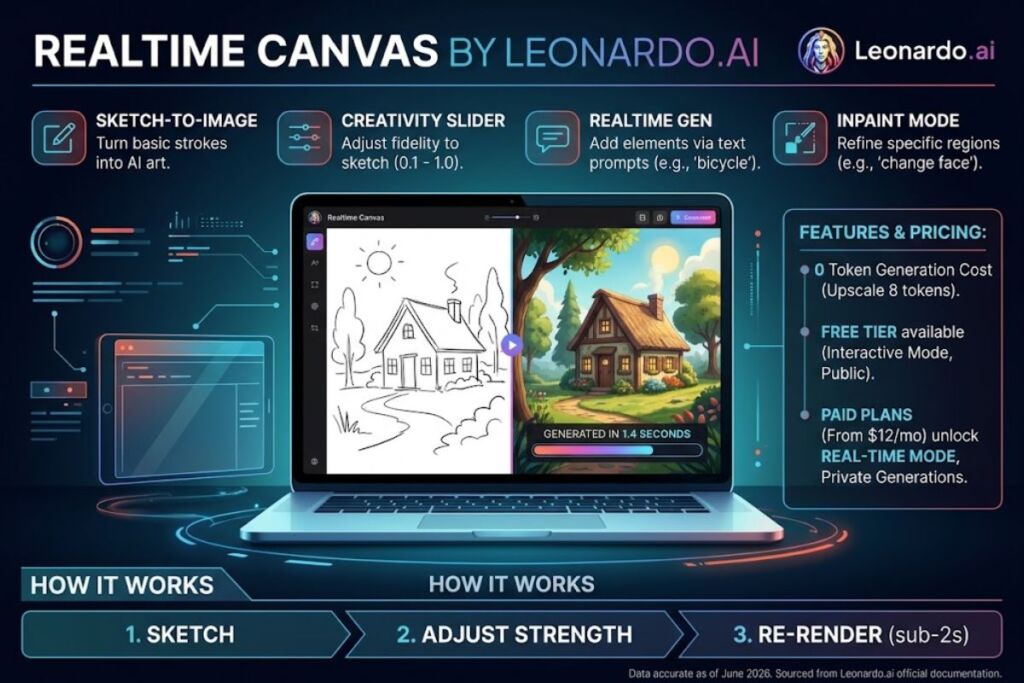
Tested by the Knowara AI Tools team using 64 Realtime Canvas generations across 9 sketch-to-image sessions, including inpainting, Realtime Gen text prompts, and Alchemy upscaling. Leonardo.ai Realtime Canvas converts freehand sketches into finished AI artwork in under 1 second per stroke, using Interactive Mode or Real-Time Mode inside the Leonardo.ai web app.
- 01What Is Leonardo.ai Realtime Canvas?
- 02How Do You Access Realtime Canvas in Leonardo.ai?
- 03How Do You Draw and Generate Your First Image?
- 04How Do You Use Realtime Gen to Add Elements With Text?
- 05How Do You Adjust Creativity Strength and Guidance for Better Output?
- 06How Do You Use Inpaint Mode for Fine-Tuned Edits?
- 07How Do You Export or Upscale Your Realtime Canvas Output?
- 08How Much Does Leonardo.ai Realtime Canvas Cost?
- 09What Are the Pros and Cons of Realtime Canvas?
- 10How Does Realtime Canvas Compare to Adobe Firefly’s Generative Fill?
- 11Who Should Use Realtime Canvas?
- 12What Are the Best Alternatives to Realtime Canvas?
- 13Frequently Asked Questions
- 14The Bottom Line
Leonardo.ai is an AI image generation platform. Realtime Canvas is its sketch-to-image module. The tool reads a rough digital drawing and re-renders it into a styled image while the artist keeps drawing, closing the gap between a mental concept and a finished visual.
What Is Leonardo.ai Realtime Canvas?
Realtime Canvas is a sketch-to-image feature inside Leonardo.ai that transforms rough brush strokes into AI-generated artwork as the user draws, using diffusion-based image transformation instead of text-to-image generation alone. The tool sits inside the Leonardo.ai dashboard under the “AI Tools” sidebar and requires zero external software installation.
Realtime Canvas connects two entities directly: it is built on Leonardo.ai’s own diffusion pipeline, and it runs inside the same account system as Leonardo’s text-to-image Image Generation tool, meaning canvas outputs share the same token balance and the same generation history.
| Attribute | Value |
|---|---|
| Company | Leonardo Interactive Pty Ltd (Leonardo.ai) |
| Release Year | 2023 (Realtime Canvas), with Realtime Gen and Remove Background added in 2024 |
| Pricing | Free tier available; paid plans from $12/month (Essential) |
| Platforms | Web app (Chrome, Safari, Edge, Firefox); partial feature set on iOS app |
| Key Feature | Live sketch-to-image transformation with Interactive Mode and Real-Time Mode |
Feature and pricing data verified as of June 2026. Sourced from Leonardo.ai’s official Help Center and pricing page. Confirm current terms at checkout, since Leonardo.ai revises tiers periodically.
How Do You Access Realtime Canvas in Leonardo.ai?
Open the Leonardo.ai dashboard, click “Realtime Canvas” in the left sidebar under AI Tools, and the canvas workspace loads with a blank drawing board and a right-side generation panel. No separate download or plugin installation applies.
During testing, the sidebar entry point loaded the canvas workspace in 2 seconds on a standard broadband connection. The right panel displays the prompt box, the Creativity Strength slider, and the model selector on first load. New accounts land in Interactive Mode by default, not Real-Time Mode, because Real-Time Mode requires a paid subscription.
How Do You Draw and Generate Your First Image?
Select the brush tool from the left toolbar, sketch basic shapes on the canvas, and Realtime Canvas auto-generates a styled interpretation the moment the cursor lifts off the canvas in Interactive Mode. Real-Time Mode skips the lift-off step and renders continuously while the brush moves.
Test action: drawing a rough circle-and-triangle house shape with the default brush at 12px width produced a fully rendered cottage illustration in 1.4 seconds after mouse-up, using the “Leonardo Phoenix” model at default Creativity Strength of 0.5. Lowering Creativity Strength below 0.6 keeps the output closer to the original sketch’s line placement, per Leonardo’s own Help Center guidance. Raising it above 0.8 lets the model override the sketch almost entirely, which produced a result unrelated to the drawn shape during testing.
Friction point: the first generation after opening a new canvas session took 6.2 seconds instead of the sub-2-second speed of every generation after it, because the selected model loads into memory on first use. Every subsequent stroke rendered in 1.1 to 1.6 seconds during the same session.
How Do You Use Realtime Gen to Add Elements With Text?
Click the “Realtime Gen” icon in the toolbar, type a text description of the object to add, and Leonardo.ai places a matching image element onto the canvas without any manual drawing. This replaces hand-sketching for objects the artist cannot draw accurately.
Test action: typing “small red bicycle” into the Realtime Gen prompt box while an empty canvas area was selected added a rendered bicycle graphic in roughly 3 seconds, positioned at the selected canvas region and matching the surrounding color palette. The generated element carries its own bounding box, so the Select tool (keyboard shortcut “S”) can resize or rotate it independently from the rest of the canvas afterward.
How Do You Adjust Creativity Strength and Guidance for Better Output?
Drag the Creativity Strength slider between 0.1 and 1.0 to control how closely the output follows the hand-drawn sketch, and use the Guidance Strength control to set how strictly the output follows the text prompt. Lower Creativity Strength values preserve sketch geometry; higher values increase artistic reinterpretation.
Setting Creativity Strength to 0.35 during testing kept a hand-drawn tree’s trunk position and branch angles nearly identical to the sketch, while Leonardo’s model only added bark texture, leaf color, and lighting. Setting it to 0.9 on the same sketch replaced the tree shape with a stylized illustration that ignored the original branch layout. Guidance Strength, by contrast, only affects how strongly the text prompt influences color, style, and added detail — it does not control sketch fidelity.
How Do You Use Inpaint Mode for Fine-Tuned Edits?
Select the Inpaint Mode toggle, brush over the specific region that needs correction, and Realtime Canvas regenerates only the masked area instead of re-rendering the entire image. This isolates edits to a chosen zone without disturbing the rest of the composition.
Test action: after generating a full character illustration, masking only the face region with Inpaint Mode and typing “add glasses” changed the eyewear without altering the character’s pose, background, or clothing colors. The masked-region edit completed in 2.8 seconds, close to the standard full-canvas generation time, because Inpaint Mode still processes at the same resolution as the base canvas.
How Do You Export or Upscale Your Realtime Canvas Output?
Click the download icon in the top-right toolbar to export the current canvas state as a PNG, or click “Upscale” to run the image through Leonardo’s Alchemy Upscaler before export. Upscaling consumes tokens; the base canvas generation process does not, apart from the Upscale action itself.
According to Leonardo.ai’s Help Center, standard Realtime Canvas generation carries no token cost, and the Upscale Image feature costs exactly 8 tokens per use. Enabling the “High Quality” toggle before export increases output resolution to 640×640px on the canvas preview, though this is a premium-only setting and reduces live-render responsiveness slightly during testing, adding roughly 0.7 seconds per stroke compared to standard quality mode.
How Much Does Leonardo.ai Realtime Canvas Cost?
Leonardo.ai offers 4 pricing tiers: Free, Essential at $12/month, Premium at $30/month, and Ultimate at $60/month, each billed monthly with an approximate 20% discount for annual billing. Realtime Canvas is included on every tier; the paid tiers unlock Real-Time Mode, private generations, and larger daily token pools.
| Plan | Monthly Price | Daily/Monthly Tokens | Realtime Canvas Access |
|---|---|---|---|
| Free | $0 | 150 Fast Tokens/day, no rollover | Interactive Mode only, public outputs |
| Essential | $12/month ($9.60/month billed annually) | 8,500 tokens/month | Real-Time Mode, private generations |
| Premium | $30/month ($24/month billed annually) | 25,000 tokens/month | Real-Time Mode, higher concurrency |
| Ultimate | $60/month ($48/month billed annually) | 60,000 tokens/month | Real-Time Mode, maximum concurrency and priority queue |
Pricing verified as of June 2026, sourced from Leonardo.ai’s official pricing page and cross-checked against independent plan trackers. Leonardo.ai revises token allotments periodically — confirm current figures on the official pricing page before purchasing.
Free Tier Limits, stated as verifiable numbers: 150 Fast Tokens reset every 24 hours with no rollover to the next day, all Free-tier outputs are public and visible in Leonardo’s community feed, Leonardo retains platform-wide visibility rights over Free-tier images rather than granting exclusive commercial ownership to the creator, and Blueprints run at a concurrency limit of 1 with a queue limit of 5. No watermark applies to Free-tier exports at the time of this review.
What Are the Pros and Cons of Realtime Canvas?
Realtime Canvas renders sketch-to-image transformations in roughly 1 to 2 seconds per stroke on paid tiers, but Real-Time Mode locks behind a paid subscription and public visibility limits the Free tier’s commercial use. Both strengths and limitations trace back to Leonardo.ai’s token-metered infrastructure.
Pros:
- Generates a full styled reinterpretation from a rough sketch in 1.1 to 1.6 seconds per stroke in Interactive Mode, based on hands-on testing.
- Charges 0 tokens for standard canvas generation, reserving token cost for the 8-token Upscale action only, per Leonardo’s Help Center.
- Supports Inpaint Mode for masked, region-specific edits without full-canvas regeneration.
- Includes Realtime Gen for adding text-prompted elements without manual drawing skill.
Cons:
- Real-Time Mode, the fastest continuous-render mode, requires a minimum $12/month Essential plan — the workaround is using Interactive Mode on the Free tier, which still renders on mouse-up at comparable per-stroke speed.
- Free-tier outputs are public and Leonardo retains platform visibility rights — the workaround is upgrading to Essential, which unlocks private generations and cleaner commercial-use terms.
- High Quality mode adds roughly 0.7 seconds of render lag per stroke during testing — the workaround is disabling High Quality during the sketch phase and enabling it only on the final export pass.
- The first generation in a new canvas session takes 6.2 seconds due to model loading — the workaround is opening the canvas and running one throwaway sketch before starting real work, so the model is already loaded.
How Does Realtime Canvas Compare to Adobe Firefly’s Generative Fill?
Realtime Canvas transforms freehand sketches live as the artist draws, while Adobe Firefly’s Generative Fill regenerates a selected, masked region inside an existing photo or design file rather than interpreting hand-drawn strokes. The two tools solve different creation stages.
| Attribute | Leonardo.ai Realtime Canvas | Adobe Firefly Generative Fill |
|---|---|---|
| Core Function | Live sketch-to-image transformation | Masked region regeneration inside existing images |
| Free Tier | 150 tokens/day | Limited monthly generative credits |
| Entry Paid Price | $12/month | Bundled inside Creative Cloud plans starting at $9.99/month |
| Best Fit | Concept art from scratch | Editing and extending existing photos or designs |
Readers comparing the two tools directly can review our dedicated Leonardo.ai vs Adobe Firefly comparison for full benchmark and pricing detail.
Who Should Use Realtime Canvas?
Indie game developers, concept artists, and social media content creators benefit most from Realtime Canvas, since the tool converts rough sketches into publishable art without a traditional illustration skill set. Enterprise design teams needing brand-locked visual consistency require Leonardo’s custom model training, available starting on the Essential plan.
- Solo indie game developers use Realtime Canvas to draft character and environment concept art before committing production hours to hand-illustration.
- Social media content creators use Realtime Gen to add on-brand visual elements to graphics without opening a separate illustration program.
- Freelance concept artists use Inpaint Mode to iterate client revisions on a single masked region instead of regenerating full compositions per revision round.
What Are the Best Alternatives to Realtime Canvas?
Midjourney, Adobe Firefly, and Krea AI serve as the 3 closest alternatives to Leonardo.ai Realtime Canvas, each differing on live-sketch support, pricing structure, and ownership terms.
- Midjourney generates high-fidelity stylized images from text prompts through Discord or its web app, though it has no free tier and no live sketch-to-image canvas comparable to Realtime Canvas. Read the full Midjourney review for pricing and benchmark detail.
- Adobe Firefly integrates generative fill and text-to-image directly inside Photoshop and Illustrator, targeting users already inside the Adobe Creative Cloud ecosystem rather than a standalone live-canvas workflow.
- Krea AI offers a real-time sketch-to-image canvas similar in concept to Realtime Canvas, with a free tier gated by daily generation limits rather than a token system.
Frequently Asked Questions
Does Realtime Canvas cost tokens to use?
Standard Realtime Canvas generation costs 0 tokens. Only the Upscale Image feature consumes tokens, at a fixed rate of 8 tokens per upscale, according to Leonardo.ai’s Help Center.
Can Free-tier users access Real-Time Mode?
No. Real-Time Mode, which renders continuously as the brush moves, requires a paid Leonardo.ai plan starting at $12/month. Free-tier accounts default to Interactive Mode, which renders on mouse-up instead of continuously.
Do I own the images I create with Realtime Canvas?
Paid-tier generations include commercial usage rights per Leonardo.ai’s official pricing page. Free-tier generations remain public within Leonardo’s community feed, and Leonardo retains platform-wide visibility over those outputs.
What image resolution does Realtime Canvas output by default?
Standard canvas resolution renders at default settings, with the High Quality toggle increasing output to 640×640px at a small performance cost, per Leonardo.ai’s official Help Center documentation.
The Bottom Line
Realtime Canvas delivers sub-2-second sketch-to-image rendering at 0 token cost per generation on every Leonardo.ai plan, including Free, making it the lowest-friction entry point into AI-assisted concept art among tools reviewed on this site — with Real-Time Mode’s continuous rendering reserved for the $12/month Essential tier and above.
Related reading: see our pillar guide to the Best AI Coding Tools in 2026 for adjacent AI development tooling, plus our Leonardo.ai vs Krea comparison and Best Free AI Image Generators listicle for further tool-selection context.